How staff should use it
- Check the KPI cards every morning.
- Resolve priority actions before opening new sales.
- Use the charts to understand daily and weekly trends.
- Review alert and expiry lists before closing the day.

Introduction
This user manual explains the typical journey a user follows after logging in. The system is designed to keep the most important tasks in view from the dashboard and then move naturally into sales, inventory, expenses, clients, reports, and system management.
Page 01
The dashboard is the operational command center for a new user after login. It brings together the numbers, alerts, and activity feed that matter most during the day: sales, customers, profit, stock health, and urgent actions that need attention.
The top row displays the most important business metrics at a glance. This includes today’s sales, customers served, gross profit, urgent actions, average basket value, and stock value.
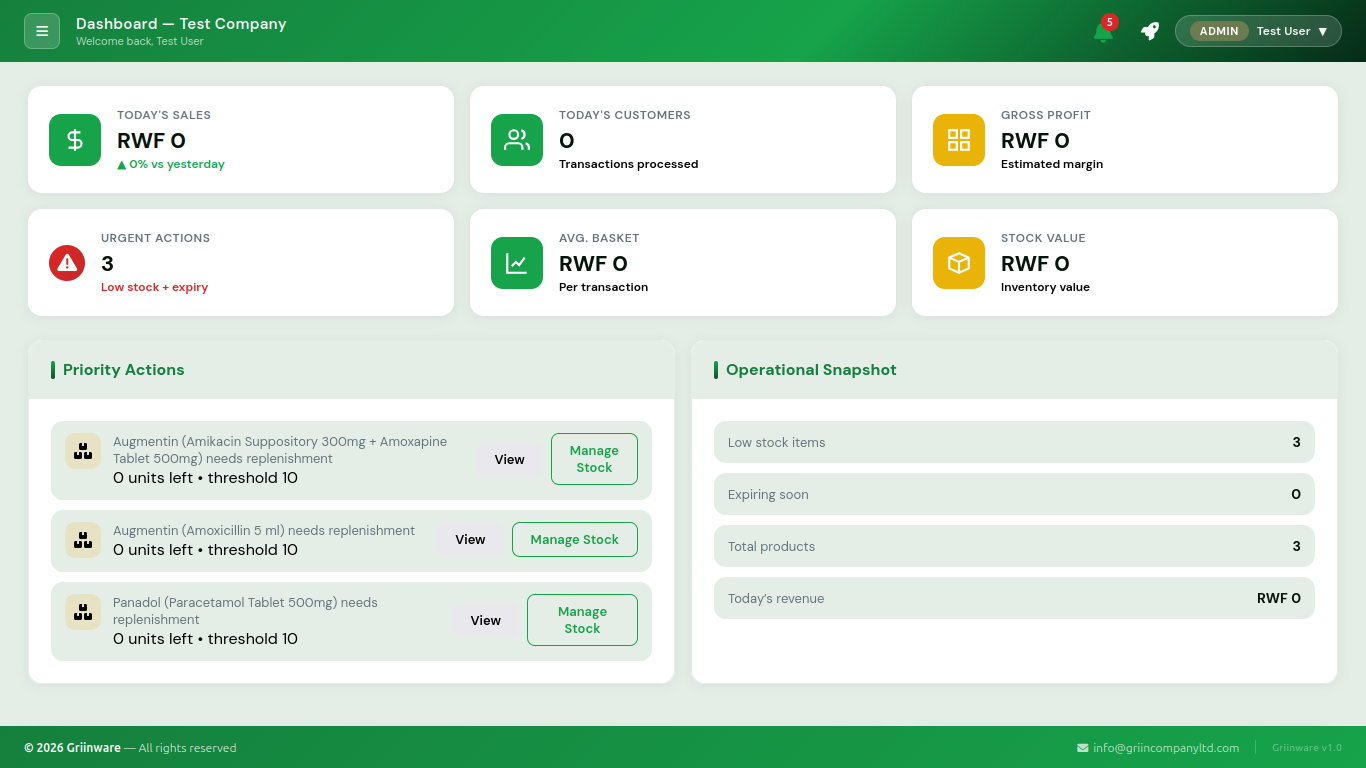
This panel highlights the next tasks that need a response. It is designed to surface urgent stock, expiry, or operational issues before they affect sales or customer satisfaction.
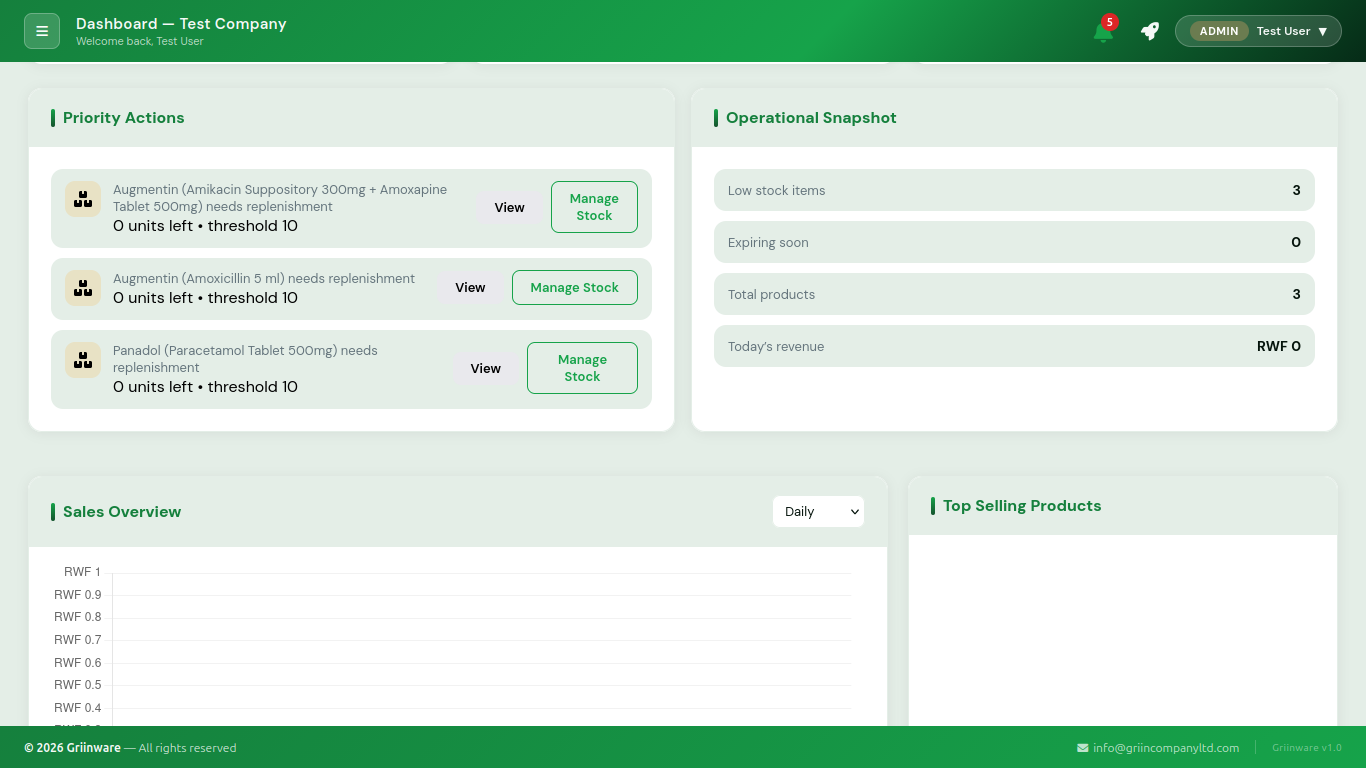
The snapshot section provides a quick business readout for the current active period. It helps a user understand whether the pharmacy is running normally, under pressure, or needs intervention.
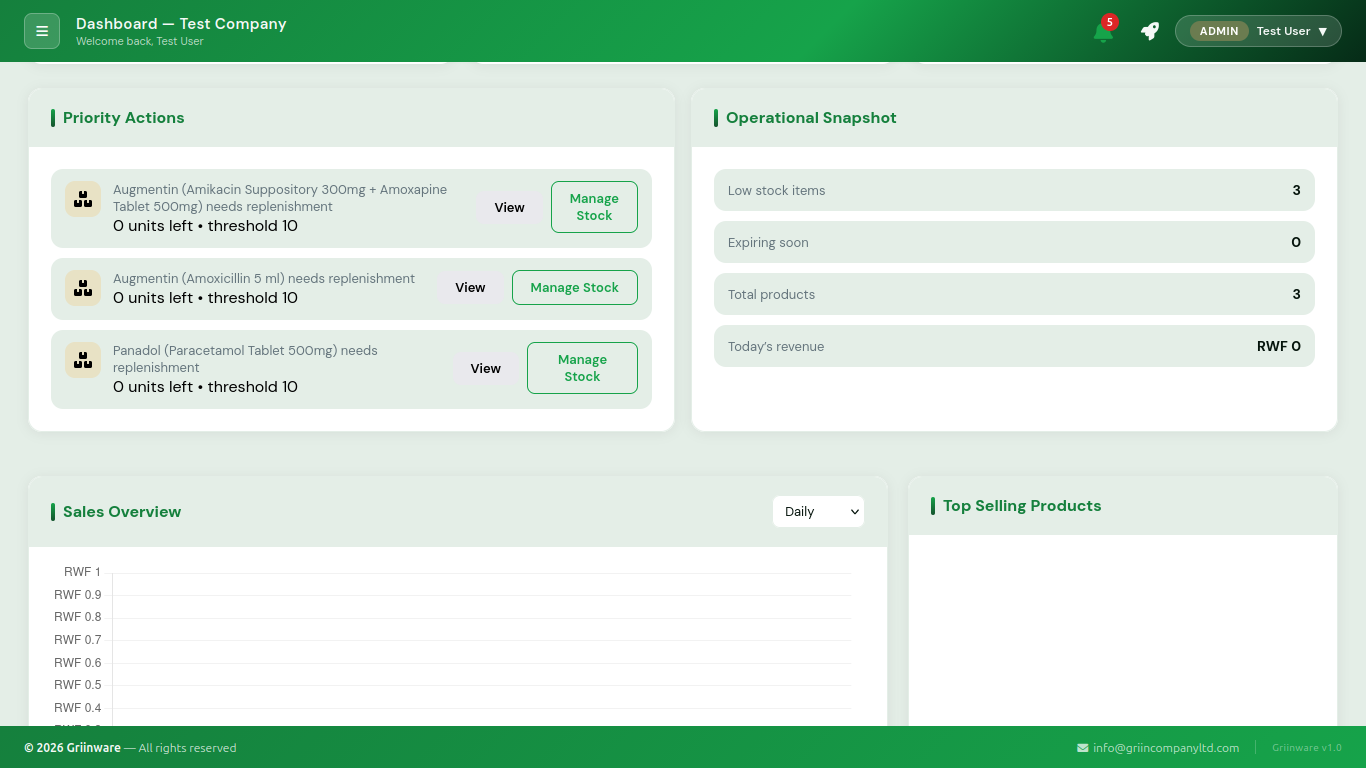
This chart visualizes performance over time. Users can switch between daily, weekly, and monthly views to spot sales peaks, slow periods, and trends across the business cycle.
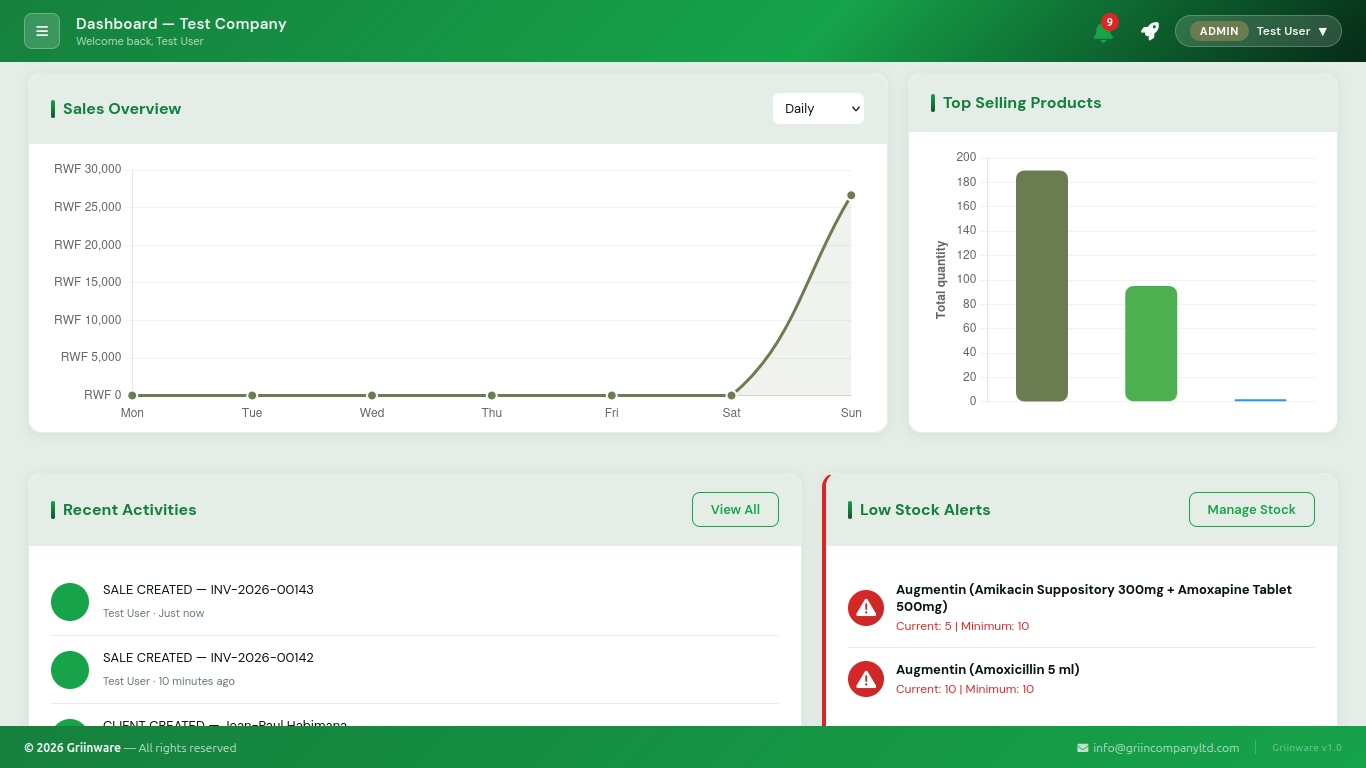
This chart compares product performance so staff can quickly see what is moving fastest and which items require special attention for restocking, promotion, or forecasting.
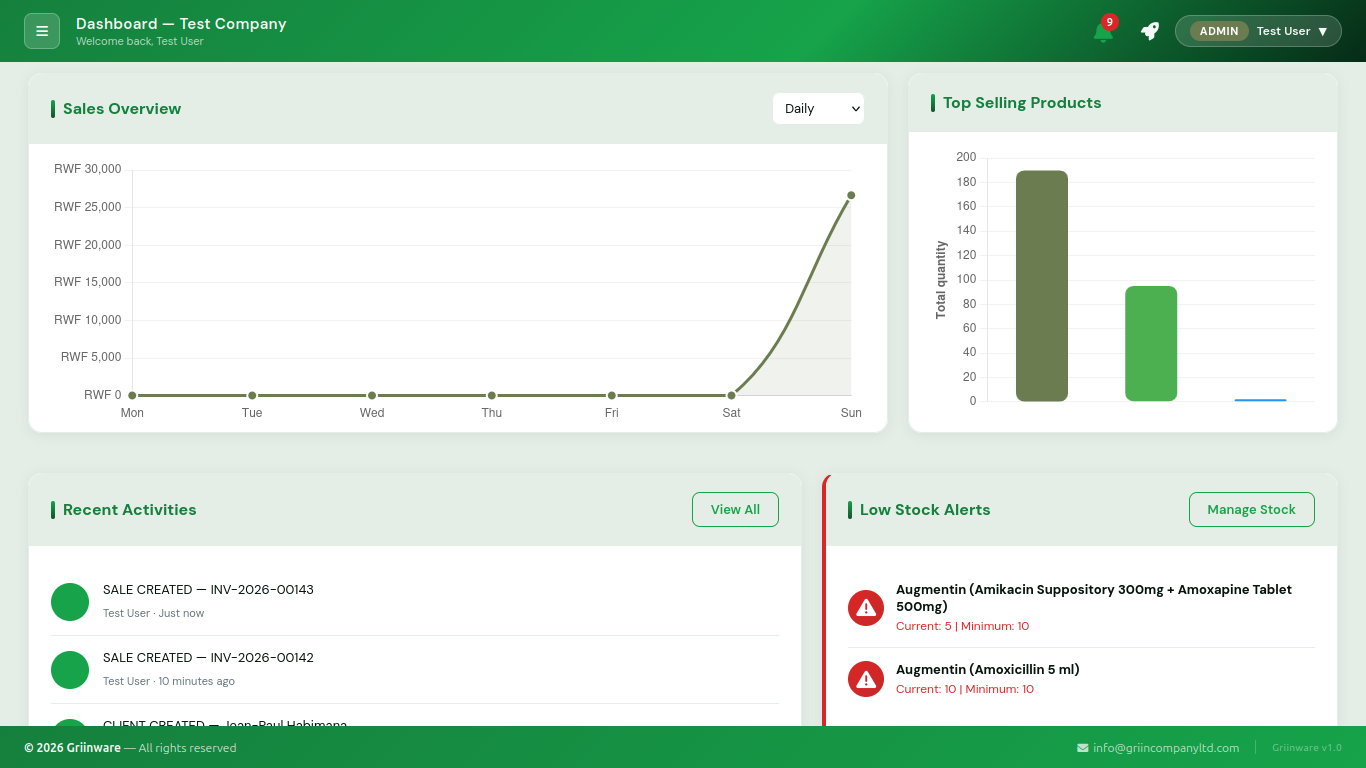
This feed keeps the most recent operational events in view, such as sales, batch changes, stock updates, and other activity recorded in the system. It helps users stay aware of what happened recently without leaving the dashboard.
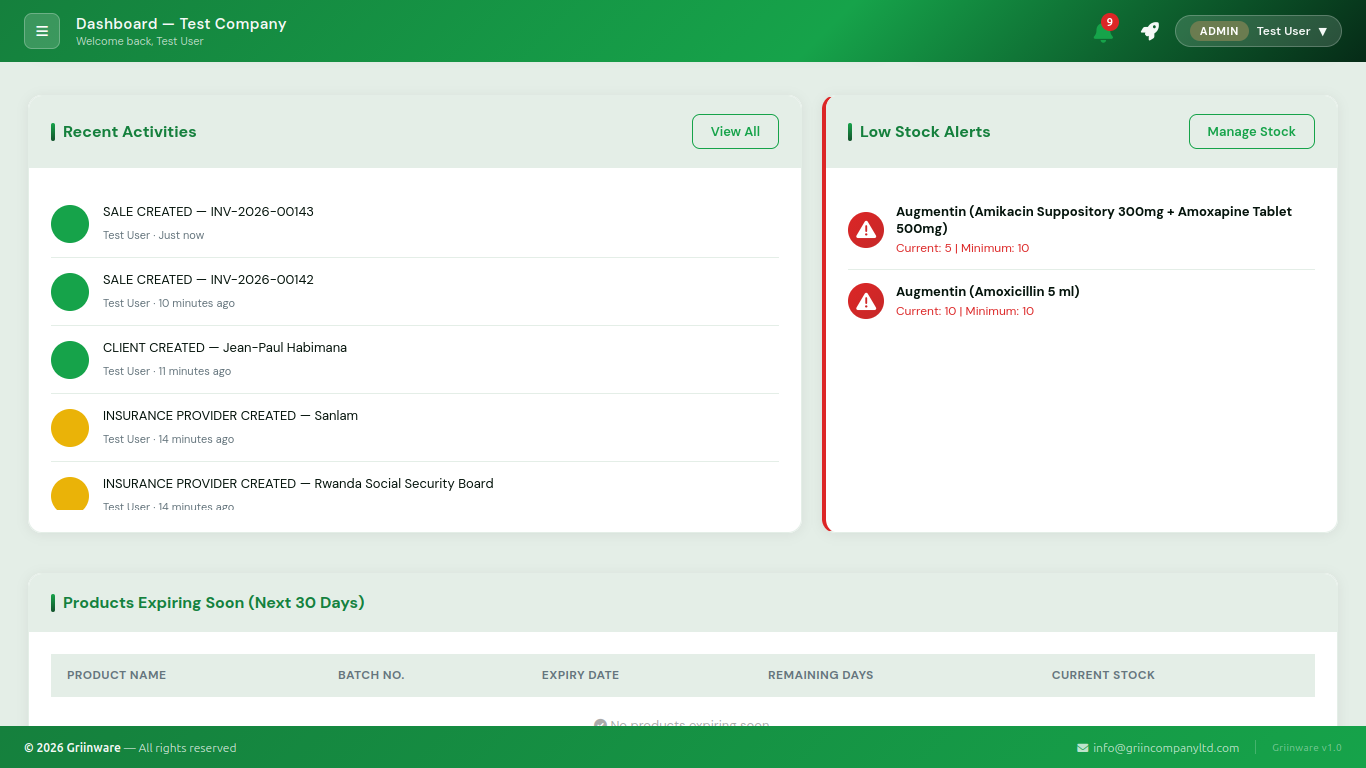
This section warns staff when inventory has dropped to a critical level. It acts as a fast trigger for restocking and helps prevent missed sales caused by missing stock.
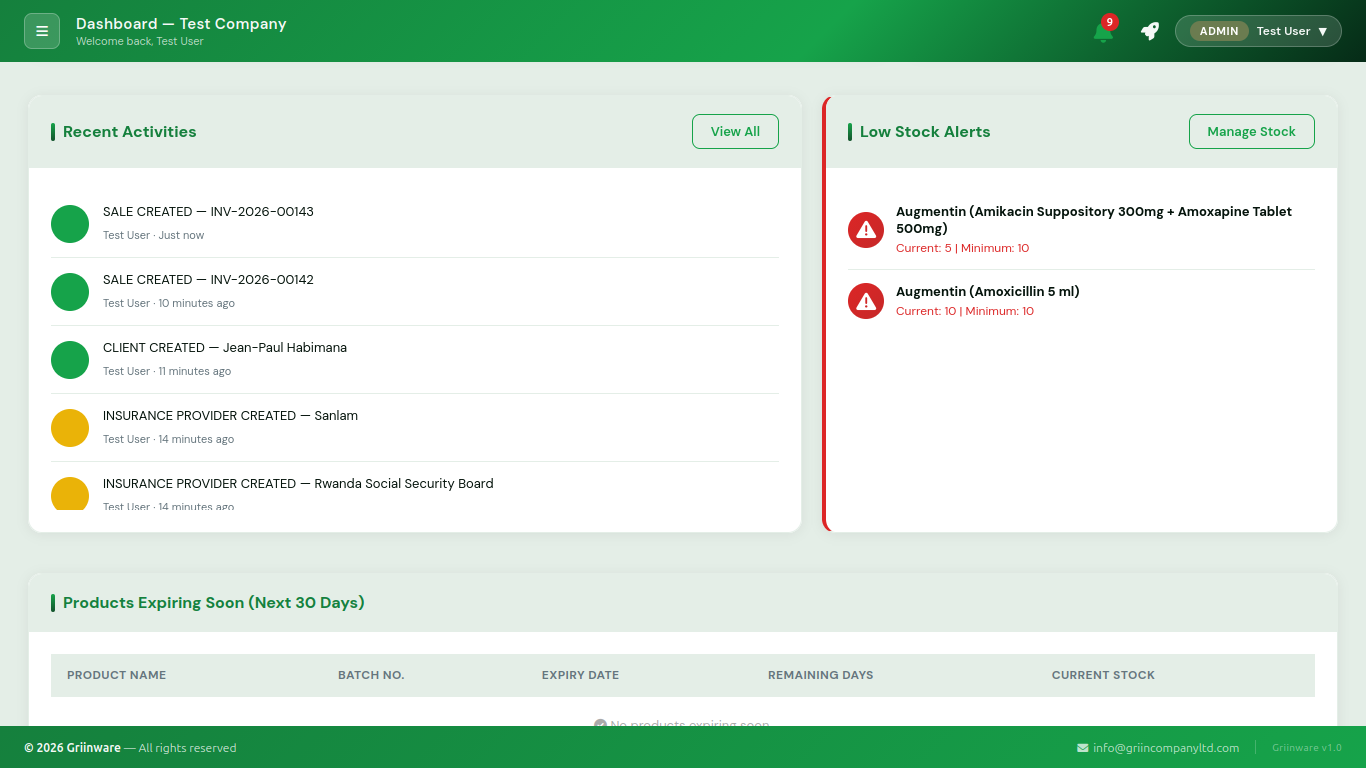
The expiring products table gives a structured view of items that will expire soon. It helps pharmacy staff prioritize product rotation and avoid losses from outdated inventory.
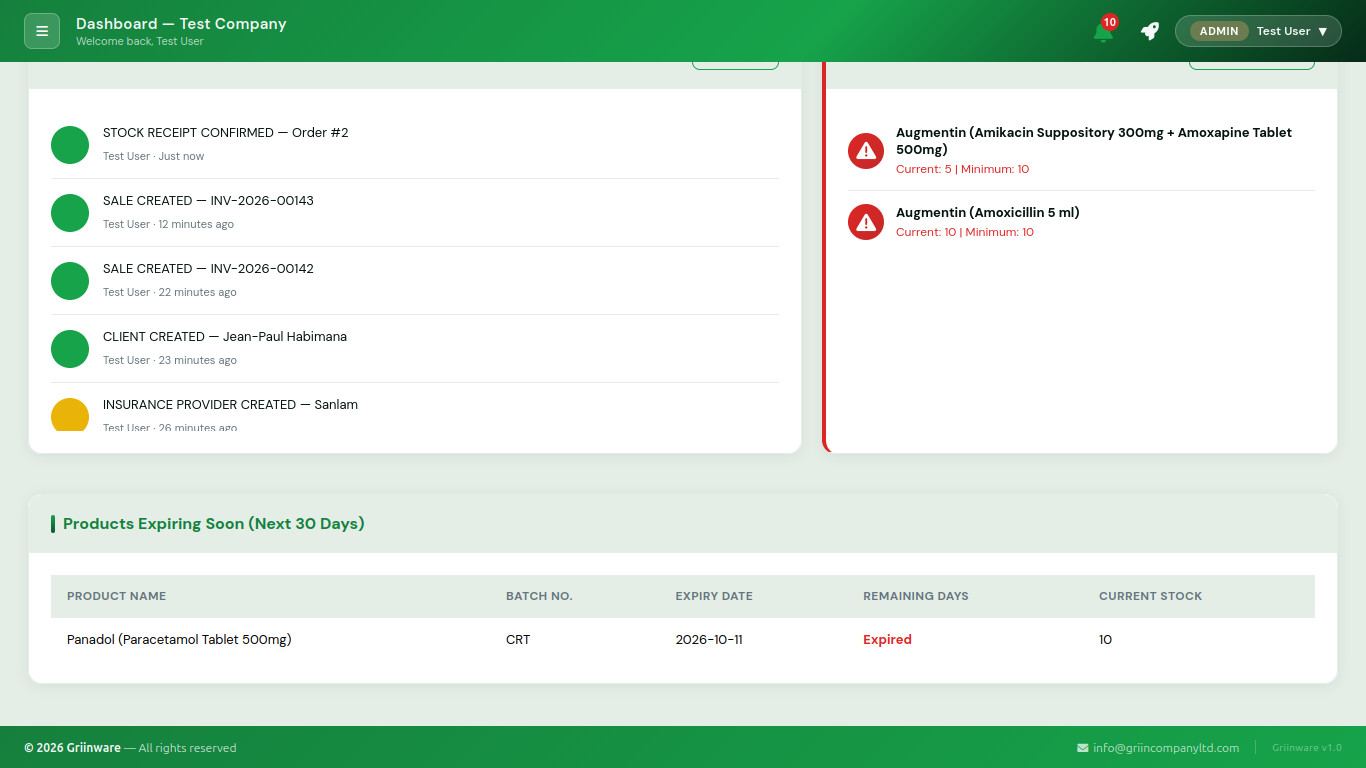
Treat the dashboard as a daily triage screen. The moment a user logs in, they should quickly scan for revenue, alerts, and operational issues before moving into any deeper workflow.
Page 02
The sales page is the main transaction workflow for the pharmacy. It guides staff through a step-by-step process from selecting a payment method to reviewing the cart, choosing the client, and finalizing the invoice. This page is the operational hub for daily retail sales.
The top of the sales screen shows a five-step checkout path: payment method, select products, review cart, select client, and confirm invoice. Each step is locked or active depending on the progress of the current transaction.
The left-side payment panel lets the cashier choose how the sale will be paid. Common options include cash, insurer coverage, and other supported payment types. The active payment method changes pricing and the next steps in the flow.
The product area allows staff to search the medicine catalog and select inventory items for the current sale. Products are shown with names, pricing, and availability so the cashier can quickly find what the customer needs.
When a product is selected, a popup appears to confirm what is being added. This popup typically contains the product name, available stock, and quantity controls. It makes the sale precise and prevents incorrect item entries before they pass into the cart.
Once products are in the cart, the cashier can change quantities, remove items, or clear the transaction. This keeps the invoice accurate and gives staff a chance to correct errors before final confirmation.
The right-hand invoice area lists all selected drug items, quantity, unit price, and total price. This is the moment where staff confirm the customer is receiving the correct items and correct totals before moving on.
Some sales depend on insurer or payer rules. The system allows staff to manage insurer pricing, confirm coverage rules, and switch pricing logic when the selected payment type is insurer-based.
Before the invoice is confirmed, the user selects the customer or client associated with the sale. This adds context to the transaction, allows linkage to patient records, and supports service or insurance workflows.
The system performs validation before confirming the invoice. It can warn about duplicated ingredients, potentially risky combinations, or other issues that need staff attention before the sale is processed.
The final step commits the transaction. Once the user confirms the invoice, the system generates the receipt and records the sale. This closes the operational loop and makes the transaction visible in reporting and revenue totals.
Treat the sales page as a strict transaction flow. Any step skipped or unchecked can affect pricing, client accuracy, or the final invoice. Always review cart details before printing the sale.
Page 03
The stock page manages the pharmacy’s inventory and helps prevent out-of-stock, expiring, or overstocked products. It is the operational layer behind all sales and replenishment decisions.
Keep this page updated daily so sales management and dashboard indicators stay accurate.
Page 04
The expenses page records outgoing costs such as supplier payments, rent, utilities, restocking expenses, or operational costs. This helps maintain an accurate picture of pharmacy profitability.
Enter expenses as soon as they occur to keep reporting and reconciliation accurate.
Page 05
The clients page stores customer and payer details used in sales and business operations. It helps maintain better customer records, billing details, and long-term relationship tracking.
Keep client records complete and up to date for faster sales processing and better customer tracking.
Page 06
The suppliers page keeps vendor details and order relationships organized. It supports purchasing decisions and gives staff a clear view of where products originate and which vendors provide the best pricing.
Keep supplier records accurate so inventory ordering is efficient and traceable.
Page 07
Reports turn raw operational data into useful business insight. This page helps managers review stock movement, sales patterns, and other records needed for planning and review.
Use this section for management reviews, stock insight, and business performance tracking.
Page 08
The users page is for account setup and access management. It allows administrators to control who can view sales, manage stock, or adjust settings.
Use clear roles so users only access the pages they need for their daily work.
Page 09
The settings page is the system control center for pharmacy records, appearance, business rules, notifications, and internal configurations. It should be managed carefully and updated only by authorized users.
Only admin-level users should change operational configuration that affects pricing, stock behavior, or account access.
Summary
The most effective operating rhythm is: start on the dashboard, process sales, check stock, record expenses, manage clients and suppliers, then review reports and system configuration. This keeps the pharmacy informed, organized, and ready for daily operational decisions.